
How to adjust transparency of background shapes/images in PowerPoint
You often see now that PowerPoint presentations or other slideshows use a semi-transparent background for their text. It allows the whole background image to be visible while making the text readable.To achieve this, just create the rectangle with the fill, which you will use as your text background. Then with the rectangle selected, click Drawing, which shows up in the ribbon under the Home tab. The first panel in the pop-up is the Fill panel, and it will contain a transparency slider.
It will look something like this:
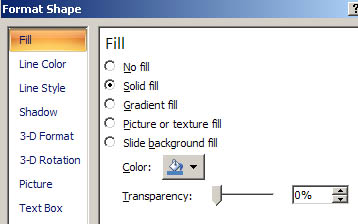
or:

Labels: powerpoint, presentations
Posted at 10:20 AM | 1 comments read on